
Set up your territory and load your customer file
No questions and one spreadsheet. Your territory and product lines come from your profile; the customer file is what turns the builder list into coverage. Every number on the Territory page is measured against these.
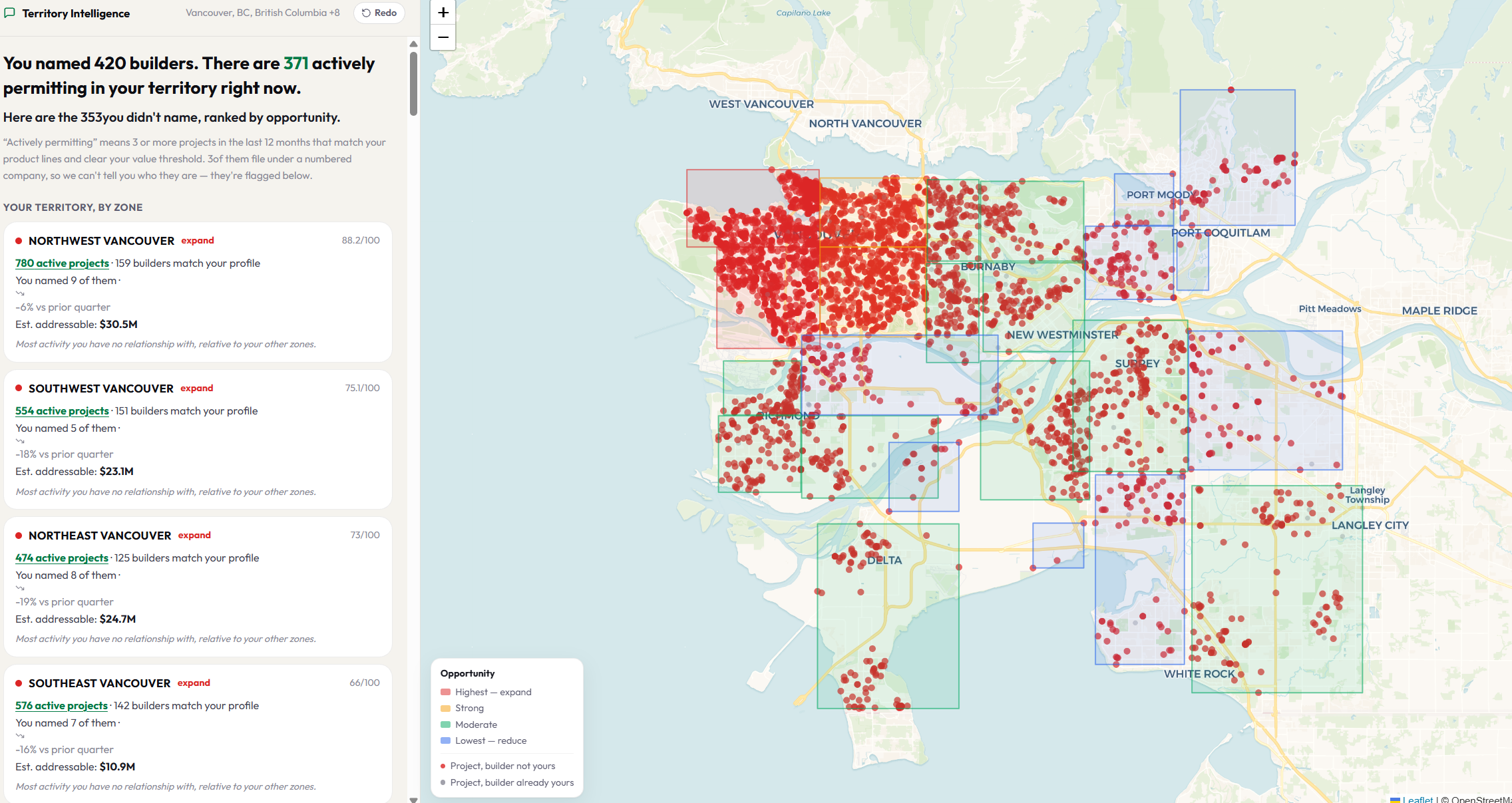
Territory Intelligence answers one question for the manager: where is my team not selling, and what do I do about it? To answer it, BuildMapper needs three things: the boundary of your territory, the product lines you sell, and the builders who already buy from you. The first two it already knows from your profile, so the page opens straight onto the findings. The third is your customer file, and the page asks for it only once you have seen what it would turn into coverage.
Your scope
A note above the findings says where the setup came from: your territory from your profile (or, on a bare account, from your sign-up, marked as a guess to check) and your product lines from the trades you chose. If nothing on file says where you sell, the page asks that one question and nothing else. Edit scope in the header changes any of it, in three questions:
- 1Where do you sell?Pick a whole province, a region, or the exact municipalities your reps cover. Pick one level: choosing municipalities clears a province choice and the other way round. Only places BuildMapper actually holds permits for are offered, each with its 12-month count, so you can see the size of what you are drawing before you commit. This boundary is the denominator for every number that follows.
- 2What do you sell?Product lines, grouped Supply and Trade. This decides which projects count as yours and how much of each project's value you could serve. A lumber yard and a flooring dealer see different projects and different dollars from the same permits. Until you pick, a broad building-supply assumption stands in, and the page says so.
- 3What kind of work do your products go into?Tick the project types. Anything you do not pick drops out of every count and every dollar figure, so untick a category only when you really never sell into it. Then Run the analysis.
The customer file
Excel or CSV, any columns, up to 24 MB. The only column BuildMapper needs is the customer or account name. Column names and order do not matter: the first twelve rows are read to work out which column is which, and anything the reader was not sure about is listed back to you under Check these with an example, so you can see how each column was understood.
- An address column unlocks the leak: which jobs at your own customers your job list does not show you on.
- A rep or salesperson column unlocks a tab per rep, and it is the same names Team Flow uses to route each rep's accounts to them.
- Adding a second file adds to the first; it does not replace it. Remove anything out of date first. Files you uploaded and names you typed are listed with a Remove button.
- A sales history, open quotes, or a price book can go in the same drop (Feed me, any time after setup). BuildMapper works out what each file is and tells you on the receipt.
- One drop feeds every module. The same file is listed under Settings → Your data with what it added and where it is used, its people are brought into Connections, and Team Flow's setup says what is already on file. There is one upload path; drop it wherever you are.
The raw file is deleted as soon as it has been read. What stays is the list of account names and, if you gave them, addresses and rep names, inside your workspace. Nobody at BuildMapper browses it, it is never shown to another company, and it is never mixed into a shared pool.
What "matched" means
Each name on your file is matched to the builders named on permits, and the covered list tells you how: name matches exactly, matched on the distinctive part of the name, close spelling match, or matched after expanding an abbreviation, with a confidence percentage. A close match is labelled inferred rather than matched, and the reveal warns you how many of your names were matched only by a close guess, so you can check those before you trust the coverage number. Click through any figure to the permits behind it.
Matching is never done once. New permits land every Monday and bring builders into range who were not there before, so your names are re-checked against the latest records and the page tells you when it matched more than last time. A re-match only adds; it never removes a match you had.
Your share of the build
A permit records what a project costs to build, the whole house. You only ever sell part of it. Every dollar figure on the page is that project value narrowed to your share, and one number sets all of them. Out of the box it is a published rule of thumb for your product lines (the page calls it the industry assumption and shows the percentage). Change it once, from the strip at the top of the page, as either what a typical job at one of these builders is worth to you or a percentage of the build, and every figure recalculates.
Do it once, then leave it
Team Flow's scope is this same territory. Change the boundary or the product lines here and Monday's batch on the This week tab changes with it; there is one territory, not two. The one thing worth revisiting is the customer file: re-upload it when your accounts change, with the rep column, so routing and coverage stay honest.