
Who gets which lead: scope, zones, fit and rotation
The Routing tab is where you tell Team Flow which permits are yours, who takes leads, what each rep takes, and which names your customer file uses for them.
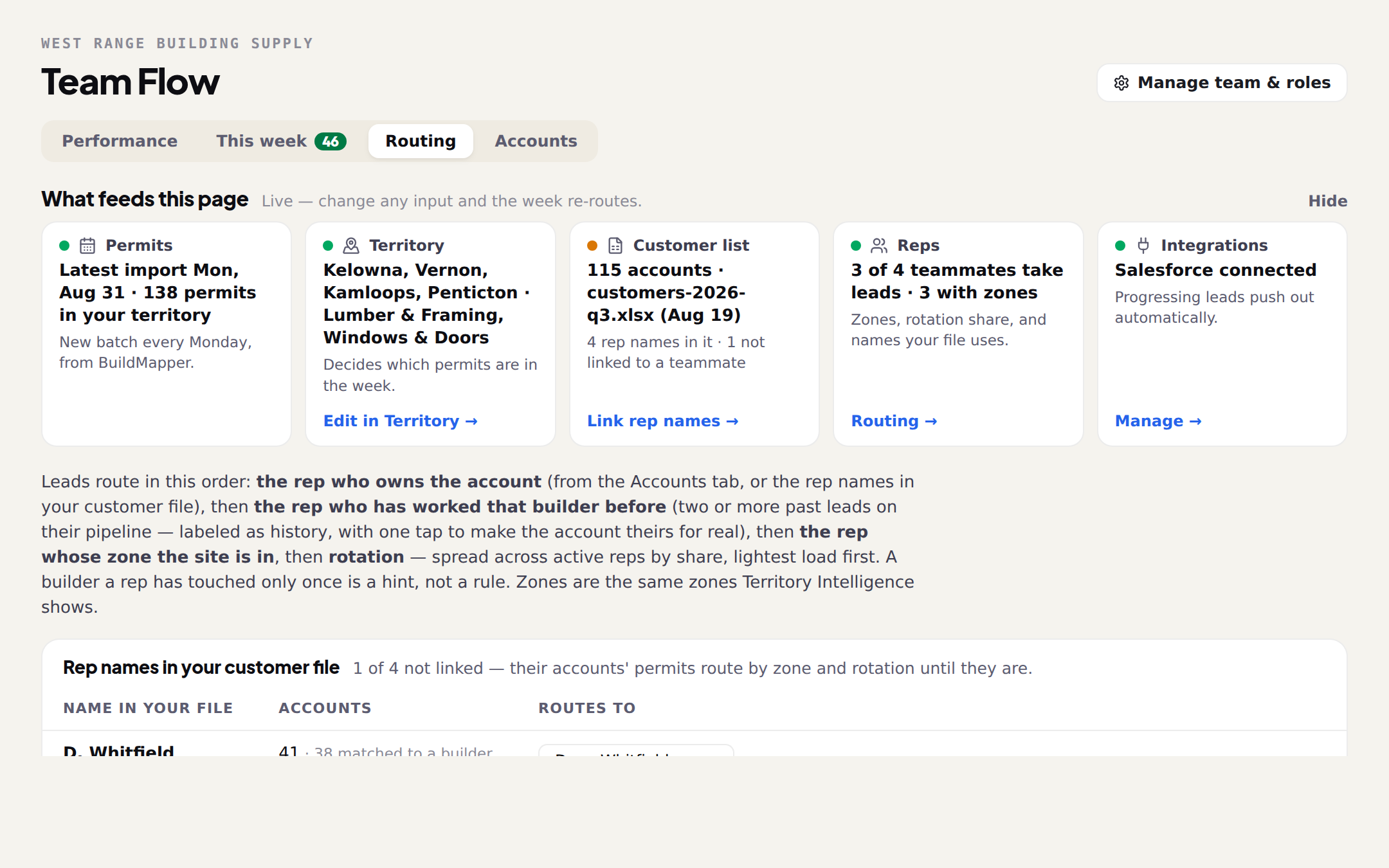
Two answers switch routing on: where you sell, and who takes leads. Everything else on the Routing tab is refinement. The order leads route in never changes, and the page states it: the rep who owns the account, then the rep who has worked that builder before (two or more past leads), then the rep whose zone the site is in, then rotation.
Scope: which permits are yours
The card at the top reads your scope as a sentence (Kelowna, Vernon, Kamloops, Penticton · Lumber & Framing, Windows & Doors) and it is the whole team's. Edit it here and three questions open: Where do you sell? (a province, a region, or municipalities, one level at a time), What builds do you supply? (the project-type groups, and whether you take new builds, alterations, or both; a house alteration is filed as a house, so this is the only way to leave those out), and Smallest job worth a rep's time (the build's cost, never your invoice). A live count tells you how many permits in the latest import match before you apply.
Link the names in your file
If your customer file has a rep column, the tab lists every name it found, how many accounts carry it, and a Routes to dropdown. Until a name is linked, that rep's accounts route by zone and rotation; once it is, they route to that teammate first. A name that is not on the team yet: invite them, or pick whoever covers those accounts now.
Each rep: takes leads, fit, zones, share, names
- Takes leads is the switch. An unticked rep gets nothing, not even their own accounts.
- Fit is which builds they take: project-type groups, new builds or alterations, and a value range. Zone and rotation only deal them those. Fit is eligibility, never relevance: it never shrinks the week. A lead nobody fits stays on This week under No eligible rep until someone's fit covers it or you pick a rep by hand.
- A relationship routes past fit. A builder they own, a name in your file, or a builder they have worked twice still goes to them, flagged Outside their fit.
- Zones are the areas a rep covers, picked from the same zones Territory scored. Two reps can share a zone; each new lead there goes to whichever claimant takes that kind of build and has the fewest open assigned leads, and the page tells you who is up next.
- Share weights the rotation. 2 gets twice the rotation leads of 1; 0 opts a rep out of rotation but keeps their account, zone and history leads.
- Names in your files are the spellings your customer file or ERP uses for this rep (Sarah, S. Miller). Same link as the table above.
What to set on day one
- 1Scope, then repsSet where you sell and which builds. Tick Takes leads on every rep who works new leads.
- 2Link the file's rep namesIf you have a rep column, link every name. This alone routes most of the week correctly, because ownership beats everything.
- 3Claim zonesGive each rep the zones they actually drive. Leave fit wide open unless a rep genuinely never sells into a build type; a narrow fit just pushes leads into No eligible rep.
- 4Let history earn ownershipWhen a Worked them before row is right, tap Make it their account. From then on it is a statement, not an inference.