
The tools 6 min read
Plan takeoffs: from drawings to a quote
Drop the whole plan set, check the materials beside the drawings, set your waste and standing notes once, then export a materials list or put it on a quote with one button.
This guide is hands-on. Follow along in the app.
A free trial takes two minutes: 25 project views or 14 days, whichever comes first. No card.
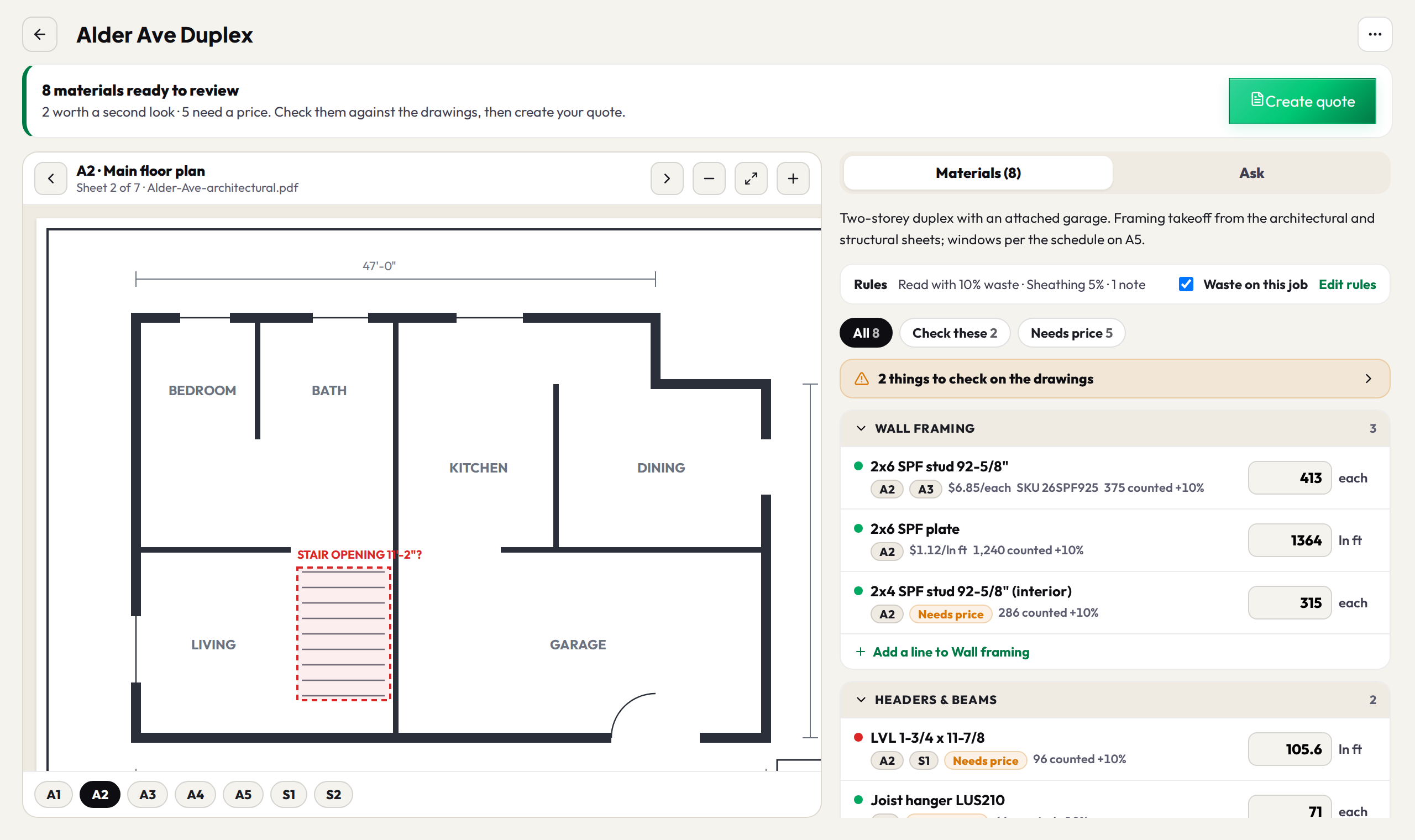
- 1Drop the whole setQuotes & Takeoffs → Takeoffs. Drop every file at once, up to 30 PDFs or photos of 100 MB each. Say what to take off, a trade or the exact items ("framing only, skip the garage", "windows and exterior doors from the schedule"), and only the sheets for it are read; you see which ones before it starts. It runs in the background, so leave the page and you get an email when it lands.
- 2Check it beside the drawingsTap a sheet tag on any line to jump to that sheet. Check these filters to the lines worth a second look, Needs price to the ones without a price. Open a line to see how it was measured, and tap Show on drawing to see where it was counted (approximate).
- 3Fix what's offType a new quantity, rename a line, add or remove one. A number you type is final. Or ask: where did the 412 studs come from? The answer comes from the drawings, and any fix arrives as a change you apply.
- 4Price itLines are priced from your price book or Product Brain; the rest say Needs price. Type a price on the line and it is saved to your price book, so the next takeoff fills it in.
- 5Export or quoteMore → Materials list / purchase order (PDF) gives you the list in your letterhead, with or without prices, before any quote exists. Create quote puts it on a quote; change a quantity later and Update Q-#### brings it across while keeping your prices and your own lines. A quote already sent is never changed.
Your takeoff rules
Set a waste % (one for everything, or a different one for a section like Sheathing) and a few standing notes ("we don't supply joist hangers") once, and every takeoff you start uses them. Waste goes on top of the counted quantity; sheets and pieces round up. Each takeoff shows the rules it used, and Waste on this job switches it off for one job. Your rules are yours: a manager's rules are never applied to a rep.
TipKeep fixing the same thing? After a few takeoffs the Takeoffs tab offers it as a rule (for example "You removed joist hangers on 3 takeoffs. Add a note?"). Nothing changes until you press it.
NoteA price on a takeoff always comes from your own price book or Product Brain, never a guess. A line with no price stays at "Needs price" and never reaches a client's document as $0.