
Run your team from the Leak Tracker
The sales manager's home: new jobs nobody called, customers starting work without you, upsells nobody offered and quotes that sat. Each one handed to the rep who should fix it.
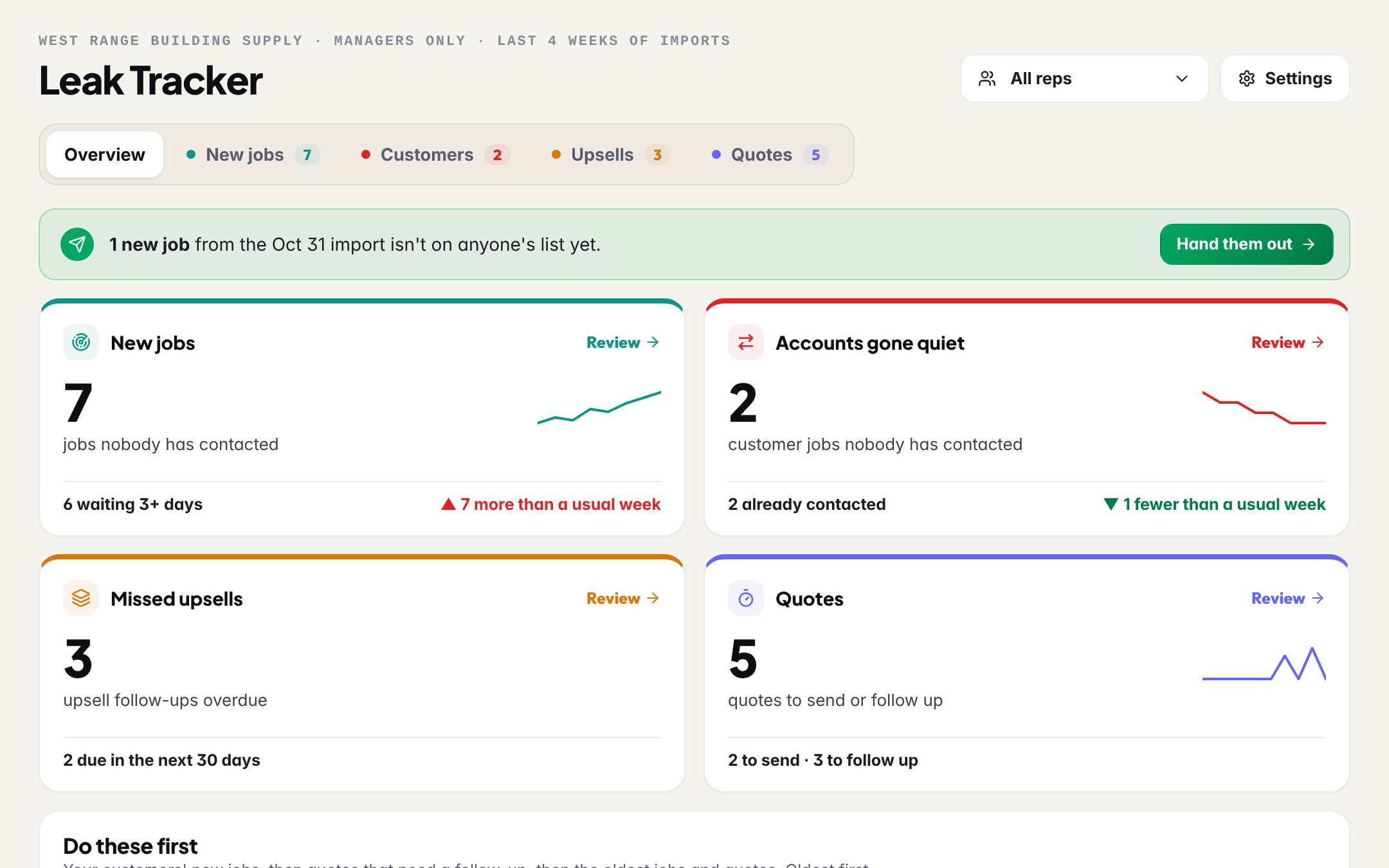
The Leak Tracker is the page a sales manager opens first. It sits at the top of your sidebar and it is the page you land on when you sign in. It reads what your team already does in BuildMapper (the weekly permit imports in your area, your reps' pipelines, the calls and emails logged on them, your quotes) and shows you four places where sales slip. It never changes anything on its own.
The four leaks
| Tab | What it shows |
|---|---|
| New jobs | Every new job in your area from the weekly imports, and the ones nobody on the team has called or emailed. The latest import is handed out from here. |
| Customers | Your customers who just filed a new job, with whether anyone has called them, and Built without you: their jobs from the last year that nobody on your team was on. |
| Upsells | Every won job against the products you sell. The follow-ups your reps chose, and the ones that came due with nobody offering. |
| Quotes | Quotes that need a follow-up, quotes started in BuildMapper and never sent, and how long a quote takes to go out. |
A job shows the build value the city recorded, and nothing else. BuildMapper does not know what share of a build is yours, so the Leak Tracker never puts a dollar figure on a job that could be read as your revenue.
Start on Do these first
Under the four boxes, Do these first lists what is lost soonest: your customers' new jobs, then quotes that need a follow-up, then the oldest jobs and quotes. Every row opens the project. Nudge sends the rep a direct message in Team Chat with the job tagged, in words you read and can change before it goes. Assign or Reassign puts the job on a rep's pipeline.
Customers
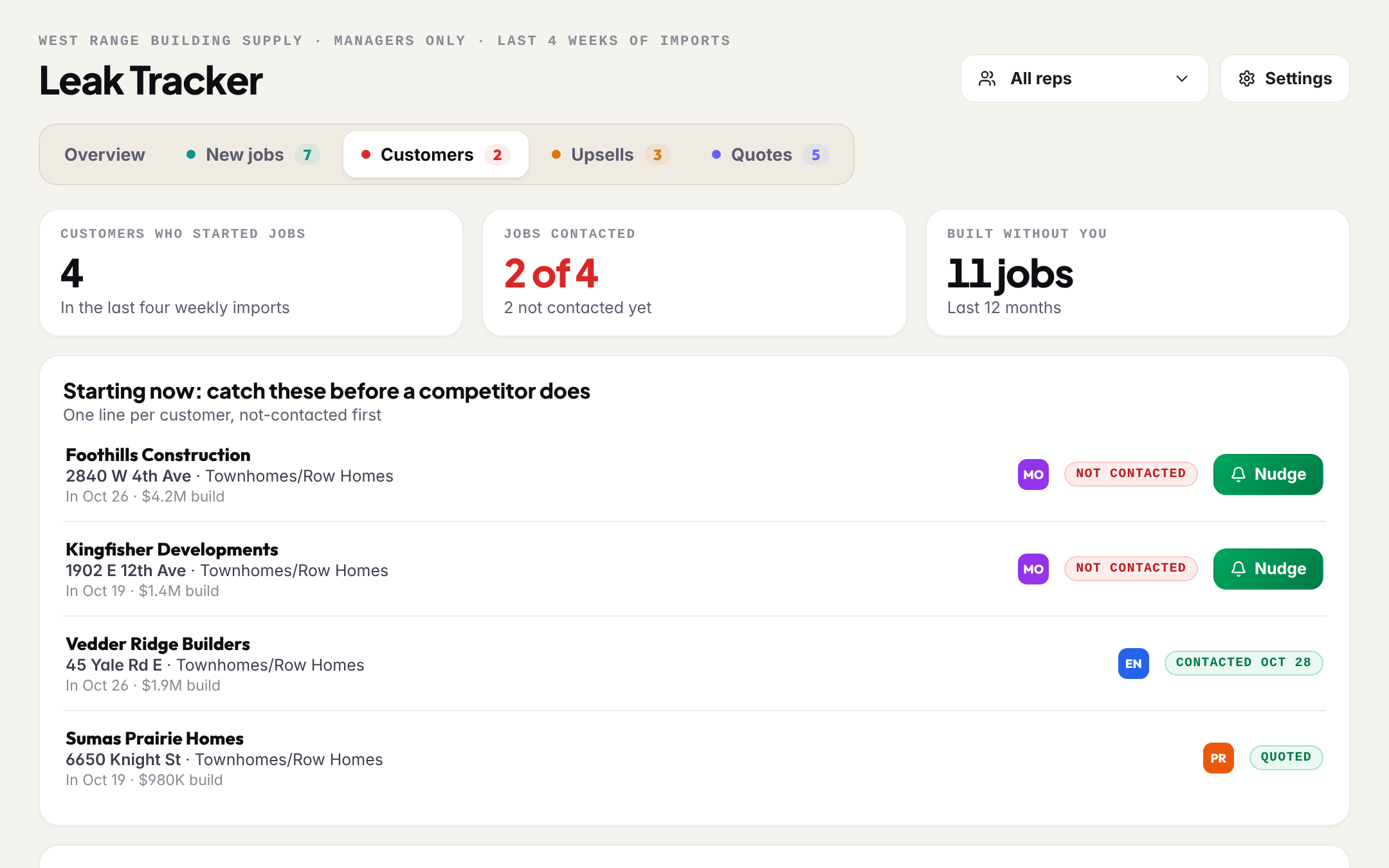
This tab reads your customer list. Without it BuildMapper cannot tell your customers from everyone else, so the tab, and every rep's Scout card, asks for one. A manager's upload becomes the team's list. Any export from your system works; the only column it needs is the account name.
Upsells
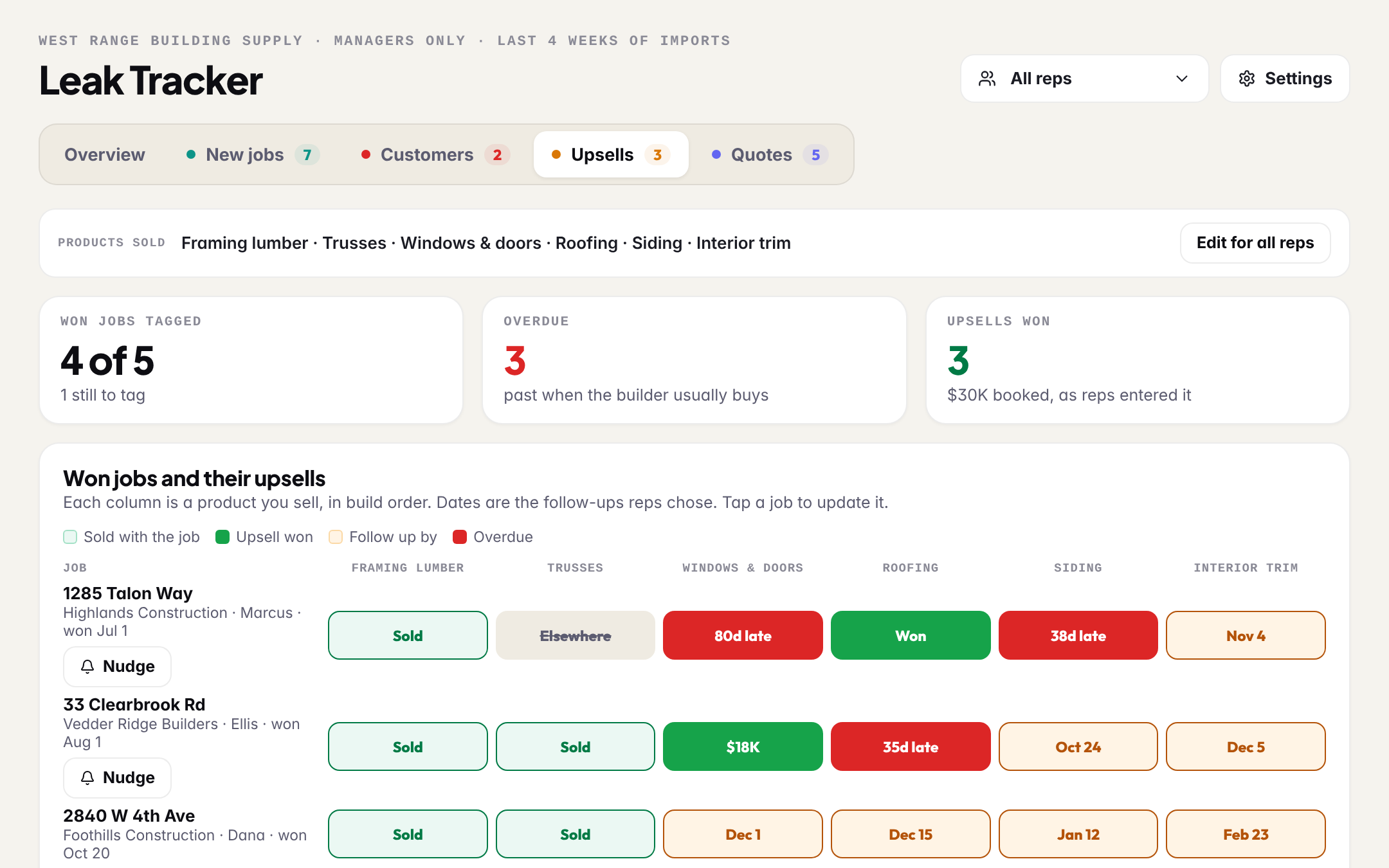
When a card lands on Won, BuildMapper asks the rep what they supplied. A follow-up is something the rep chooses; only those get a date and a reminder in the bell. A won job nobody tagged is listed so you can ask, and never counts as overdue. You set the team's list of products once, from this tab.
Quotes
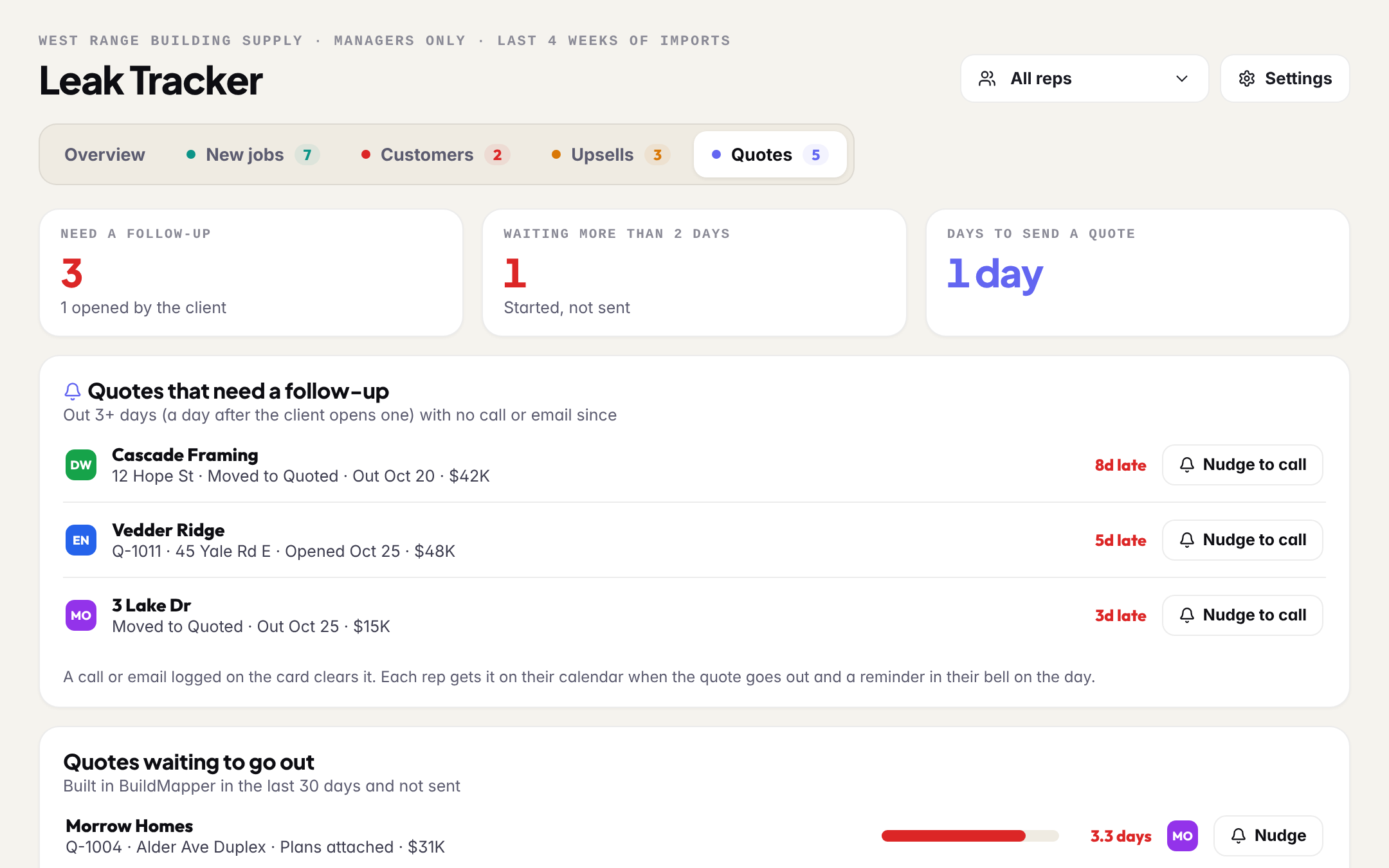
Most teams quote in their own system, so a card moved into Quoted counts as a quote that went out, beside the quotes sent from BuildMapper. Each one is due a follow-up a few days after it went out, sooner once the client opens a BuildMapper quote, and a call or an email logged on the card clears it. The rep gets a reminder in the bell on the day.
Your reps
The overview ends with Your reps: each rep's active leads and their funnel, New through Won, side by side. The rep filter at the top narrows every tab to one person. My view switches to exactly what a rep sees: their own work, nothing else.
One Settings drawer
Everything you set once lives behind Settings, so the tabs only ever show the work:
- The rules: how many days before a job counts as late, the smallest job worth counting, and your targets for the first call and for sending a quote.
- Who gets what: each rep's City, Type and Value, the same filters as the map.
- Your customer list, and the rep names in it linked to your teammates.
- Edit team and roles, which opens Settings → Team: invite reps, make someone a manager.
Ask instead of reading
Ask about your numbers, under the overview, is a chat over the same rows the page shows. It can reassign a job when you tap the button it offers, and nothing else. Scout knows the Leak Tracker too.
Read next
| To do | Read next |
|---|---|
| Hand out the week | Hand out new jobs, and who gets which |
| Load the customer list | Set up your territory and load your customer file |
| What your reps see | Your day: your list in Scout and your own Leak Tracker |
| Team, seats and roles | Seats, roles and the join code |