
Assign Monday's leads in Team Flow
Every new permit in your scope, grouped by the rep who should work it, with the reason on each one. Nothing reaches a rep until you assign it.
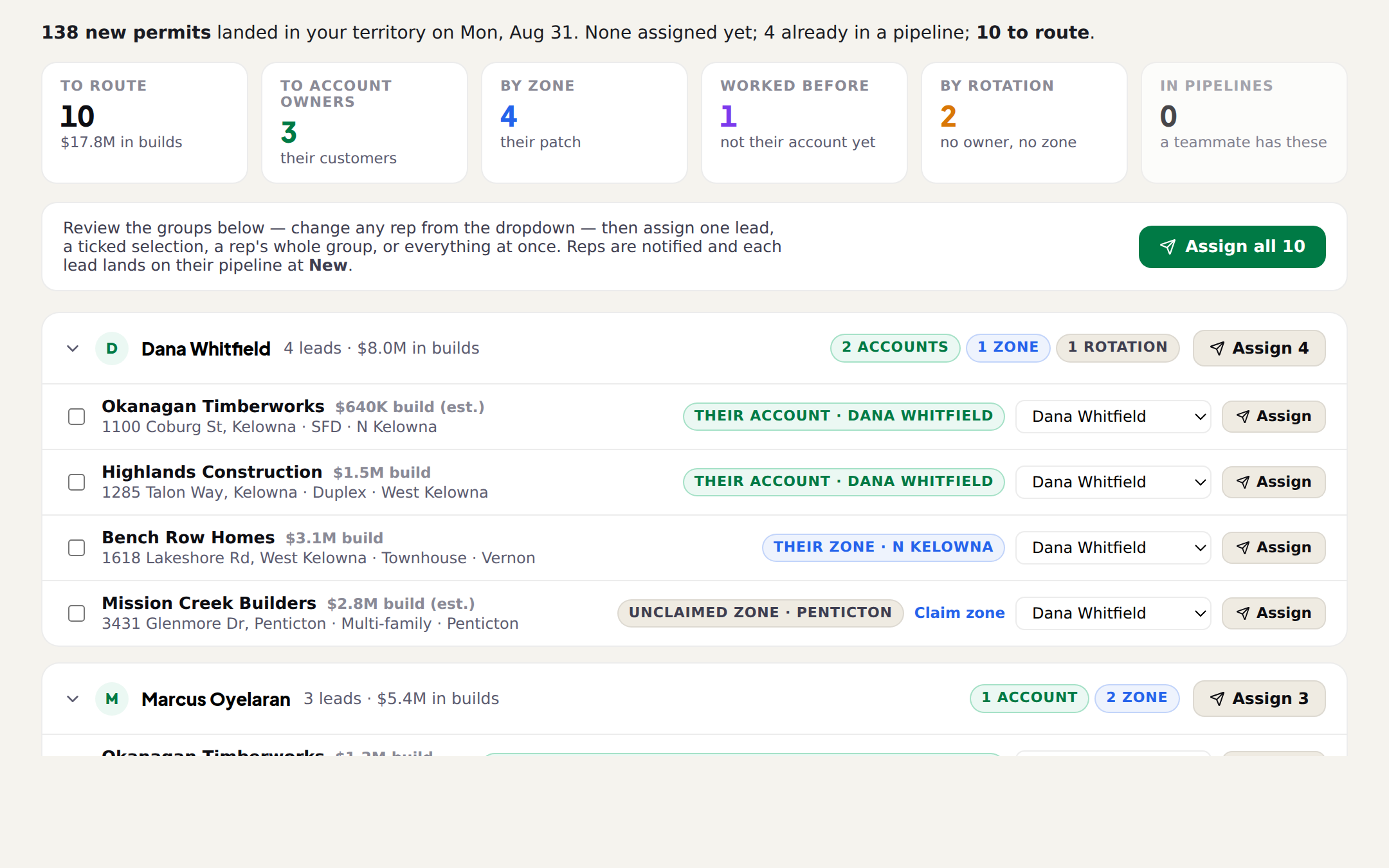
New permits land every Monday. The This week tab of Team Flow is that batch sliced to your scope, already grouped by the rep BuildMapper thinks should work each one, with the reason written on the row. Your job is ten minutes: read the groups, change a rep where you know better, and assign. Reps are notified and each lead lands on their pipeline at New.
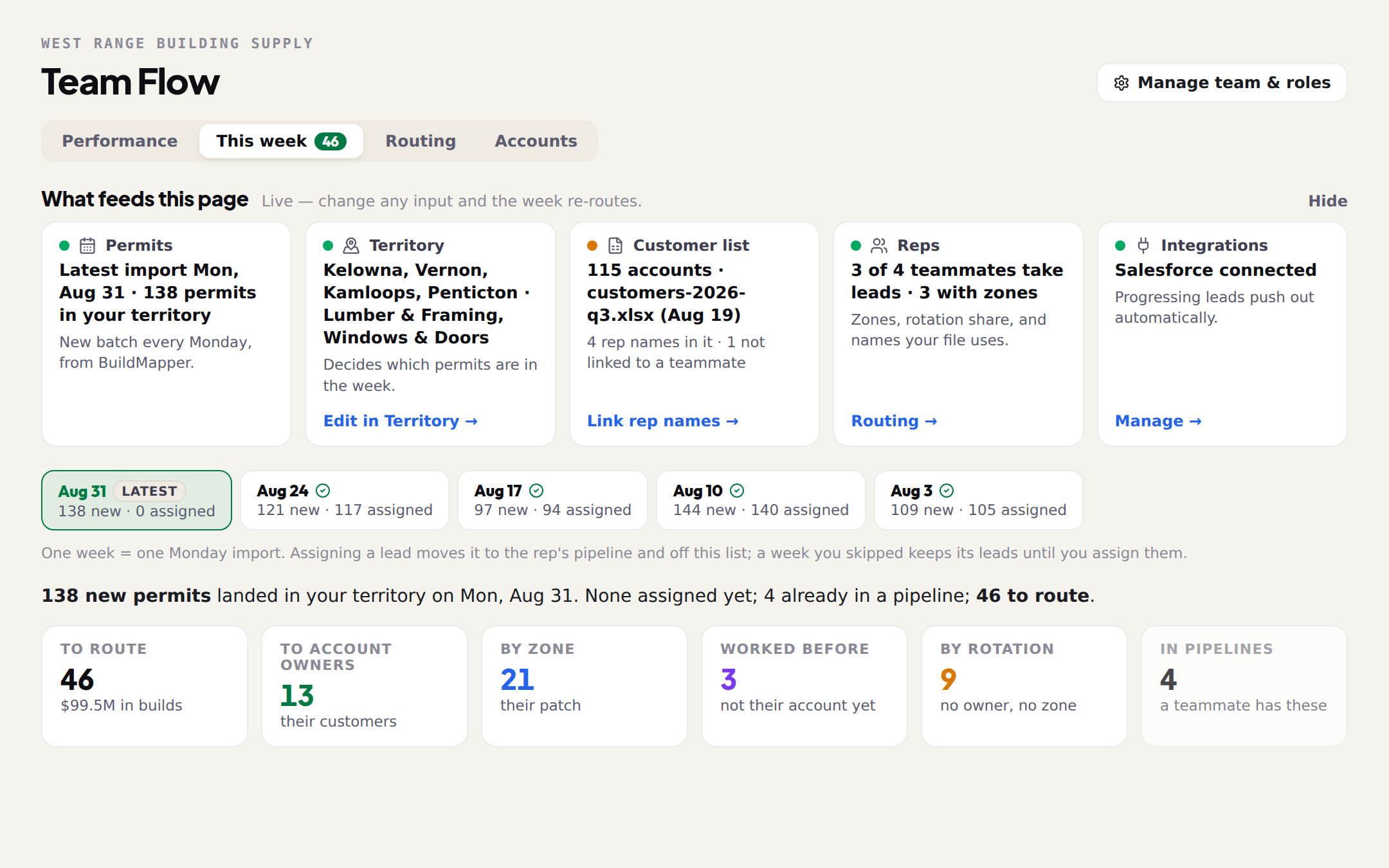
What feeds the page
Five cards across the top, and every one is live: change an input and the week re-routes. Permits (the latest Monday import and how many landed in your scope), Territory (your scope: where, which builds, how big; edit it here or in Territory, it is one setting), Customer list (your file, and how many of its rep names are linked to a teammate), Reps (who takes leads and who has a zone), and Integrations (a connected CRM, if any, so progressing leads push out on their own).
One week is one Monday import
The picker shows every import, newest first, with new · assigned counts. Assigning a lead moves it to the rep's pipeline and off this list. A week you skipped keeps its leads until you assign them, so nothing quietly expires. Under the picker, the headline reads the week out: how many new permits, how many you have assigned, how many a teammate already had in a pipeline, and how many are to route.
Read the groups
Each row is a builder, the build's value (with est. when BuildMapper had to estimate it), the address, the project type and the zone, and a chip with the reason. The reasons, strongest first:
| Chip | It means |
|---|---|
| Their account · Priya Shah | A builder Priya owns, set on the Accounts tab or by Make it their account. |
| Their account (your file) | Your customer file names this rep for the builder, and that name is linked to the teammate. |
| Worked them before ×3 | Two or more past leads with this builder on that rep's pipeline. History, not ownership: one tap, Make it their account, makes it theirs for real. |
| Their zone · N Kelowna | The site is inside a zone the rep has claimed. Zones are the same zones Territory shows. |
| Unclaimed zone · Penticton | Nobody owns the builder, your file names no rep, and no active rep has claimed this zone, so it was dealt by rotation. Claim zone fixes the next one. |
| Rotation · no zone | Dealt across active reps by share, lightest load first. |
| No eligible rep · Institutional | Your reps are on, but none of them takes this kind of build at this size. Nothing is hidden: give someone these builds in Routing or pick a rep on the row. |
A builder a rep has touched only once is a hint, not a rule; it shows as a note on the row (Dave Lang worked them ×4) when another rule won. A lead that goes to a rep because of a relationship, even though the build is outside what they normally take, is flagged Outside their fit so you can see it.
Assign
- 1Change a rep where you know betterThe dropdown on every row. Reassign to Dave, Claim zone and Make it their account are one-tap fixes that also teach the routing for next week.
- 2Assign one, some, a group, or everythingAssign on a row, Assign 3 selected after ticking, Assign 4 on a rep's group, or Assign all 46 at the top. Nothing reaches a rep until you do one of these.
- 3Read the outcome"12 leads assigned. Reps were notified; those leads now live in their pipelines, not here." Skips are listed by name when a teammate already had the lead, at the stage they have it, and nothing is taken off anyone's board.
The rep gets a notification (New lead assigned to you), the card sits in their pipeline at New, and if they have Scout on their phone the lead is in Scout's next brief. Scout drafts the pitch; the rep sends it.
Narrow the view without changing the week
Filter this view slices what you are looking at by build type, kind (new builds, alterations, in review), value, city, reason, or rep. It narrows the view only; the week itself is set by your scope. Use it to hand out the $1M+ new builds first, or to look at everything that was dealt by rotation before you assign it.